

Your Agent will be created by system admins of your company’s Genow platform. This article describes all the needed information and steps you have to think about before finishing the setup of your Agent (step 1-4). After the creation of the Agent, you normally will be able to assign knowledge yourself via the admin panel (step 5). If you have any questions regarding the setup of your Agent, contact your system admin for the Genow platform first.
Agent Setup Preparation
Name Your Agent
- Name of your Agent in both English and German.
- Description of your Agent in both English and German.
Think About the Scope of Your Agent
Hide illustration
Hide illustration
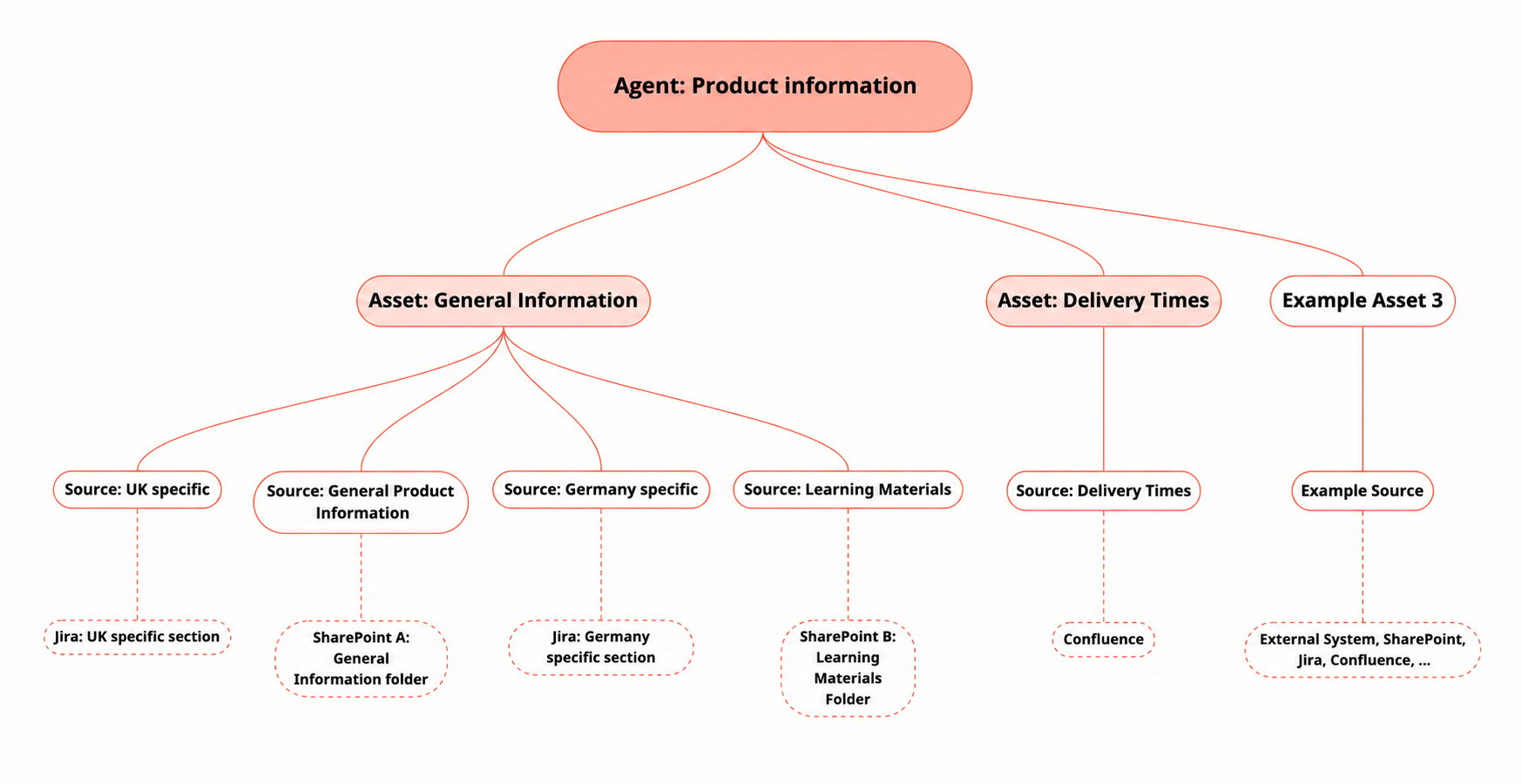
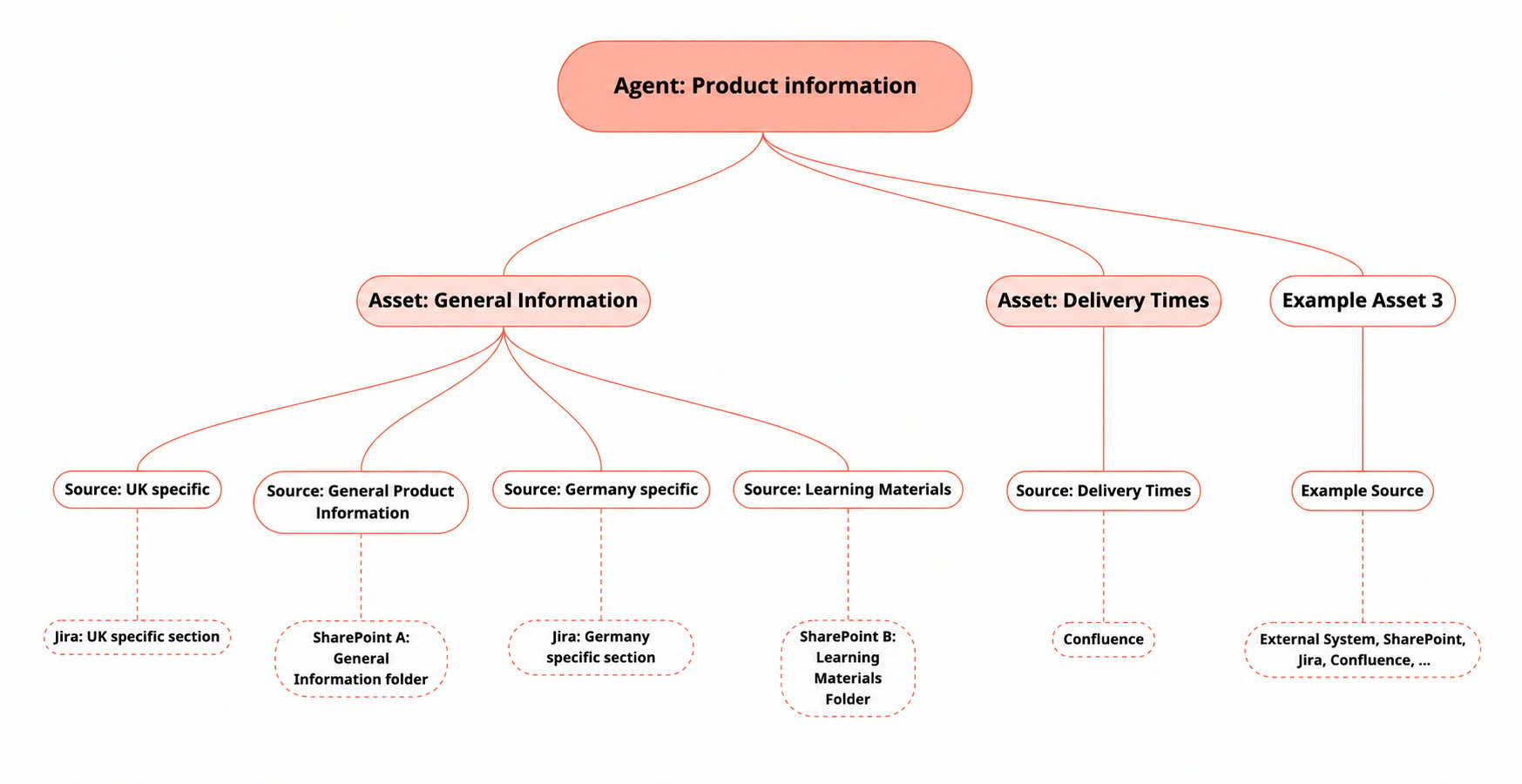
You will need to create the following amount of knowledge sources: Sources = amount of required assets * data systems * permission groups
- SharePoint (Contact your IT department so that Genow can be granted access to your SharePoint site),
- Jira (Genow will need the credentials for a service user),
- Confluence (Genow will need a user email and the associated API token), and
- Google Drive (You will need to grant access to the relevant folders for our service account).
Manage your knowledge - getting started
Please keep in mind that only data or documents from folders that are fully selected are synced. Documents from a parent folder that is not fully selected will not be synced. In this case, please move all relevant data into fully selected folders.
Identify Required Permission Groups and Users
Genow can handle complex permission groups down to folder (SharePoint or Google Drive) or section level. For each permission group, one permission role will be needed, which groups the necessary access permission to knowledge.
Permission roles, which hold a specific set of permissions for a knowledge source, are assigned to a permission group from your company’s IAM system. Contact your IT department to assign new permissions to groups or add new users to existing ones. One role is needed per user group.Before setting up your Agent, consider the needs of the various end user groups, bearing in mind that they will be assigned different role permissions later in the process. For every user the following information is needed:
- Name of the user
- Permission Group (Admin? End user? Regional user?)
Prepare Your Data
Data quality and availability is a crucial topic when it comes to ask questions on internal company knowledge. We recommend having a look into our Data Maintenance documentation. You will also find information about supported file formats in this article.
Data Maintenance
Improve your data quality!
Successful Agent Guide
Are you interested in learning the next steps to ensure the success of your Agent?