

You can add a glossary to provide Genow with relevant information about your Agent in a structured way. You can do this by using our CSV template. The glossary description can also be used to give search instructions based on the glossary’s contents.
What is a Glossary and why use one?
Basically, a glossary is a collection of terms and their supplementary information - such as a sales directory listing specific names, emails, and company affiliations - designed to provide quick clarity and context for a particular items. Columns specify the attributes, rows hold the items. The kind of terms and supplementary information can vary by Agent. In addition to the glossary itself, a glossary description is just as important to elevating your Agent alignment. It specifies the glossary’s structure and tells the system how to handle it during answer generation. If you need a more detailed overview on the concept of glossaries and glossary descriptions, different types of glossaries and examples are described at the bottom of this article.How a glossary elevates your Agent
A glossary as context in an Agent helps in two ways. Remember that Genow uses a two-step approach to answering your question. First, a semantic search on selected company data, followed by context-aligned answer generation using a Large Language Model (LLM). How a glossary improves both steps:- Improved search results: The knowledge of the glossary is injected in the search query. This drastically improves the potential to find fitting documents. Providing a the logical link between terms and supplementary information such as abbreviations and full terms in the glossary enables to precisely enrich the search query. This yields more comprehensive results.
- Improved answer phrasing: With the supplementary information provided in the glossary, the LLM can tailor its answer more precisely to your companies wording. Also, logically connecting concepts, contacts and processes becomes possible.
How to create a glossary
Creating a glossary is completed in six straight forward steps:- Create a table in a data in the spreadsheet editor of your choice, e.g., Microsoft Excel. Optionally, you can use the provide template.
- Specify the columns that represent the information structure. Usual columns are: Abbreviation, Term, Definition, Synonym
- Fill the the glossary row by row with items, that provide the actual information. Hint: The content should be understandable to humans.
- Export the file as CSV (Comma Separated Values). Make sure to use the comma ”,” as a separator. Note: The german version of Excel uses the semicolon ”;” by default, which could cause trouble.
- Upload the CSV to your Agent Context. Where exactly is shown below.
- Create a glossary description to describe the structure of your glossary. Describe the column headers, what information the columns contains and how it should be used during the answer generation. More on this below.
File size restriction: A glossary CSV file should be no larger than 1 Mega Byte (MB) and roughly no more than 10000 rows of glossary entries.
Where to upload the glossary
To upload the glossary, you have to be an Agent Admin. Navigate to the Admin Panel, select your Agent. Select “Context” in the middle panel, as shown in the left image. Within the Context settings, navigate to the Glossary section, as shown in the right image.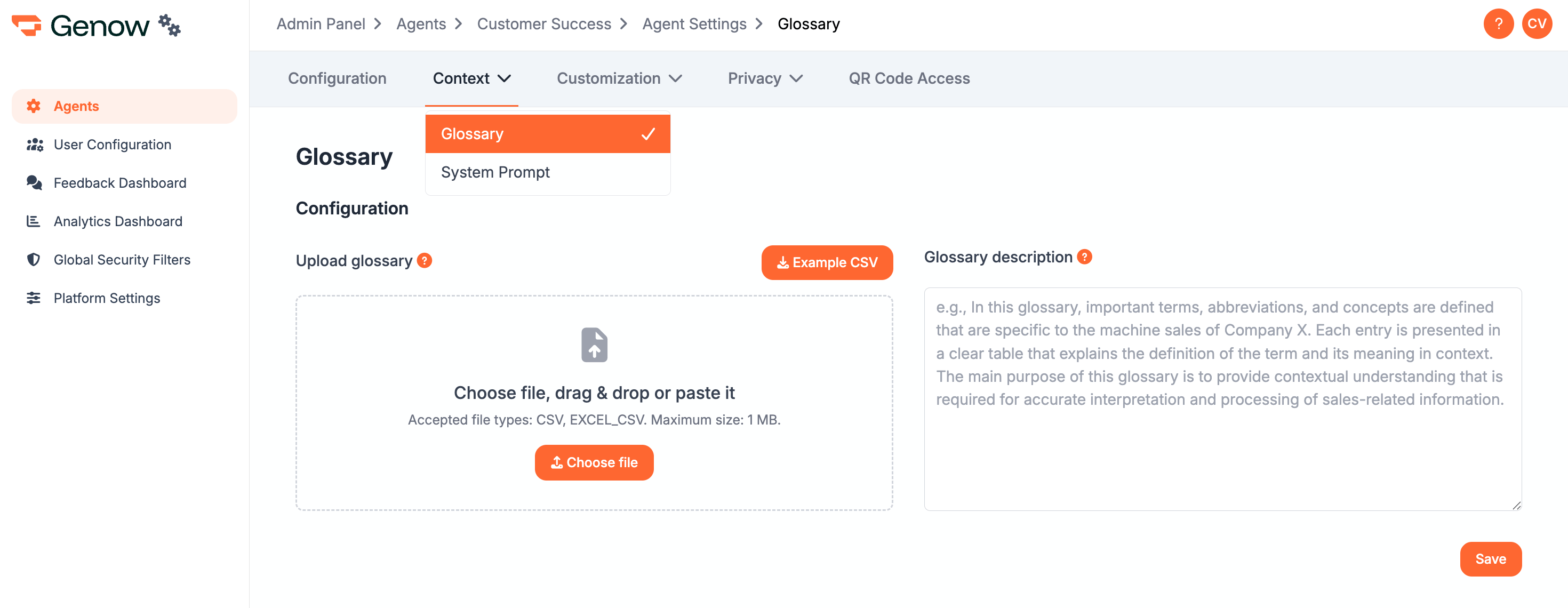
Glossary description
The glossary description is as important as the glossary itself. It should describe the structure of the glossary and its information. It should also specify how the glossary is to be used during answer generation. Write a meaningful description that helps users and the system quickly understand the purpose of this glossary. A good description should answer the following questions:- What? What type of information does the glossary contain (e.g., technical terms, abbreviations, project definitions)?
- For which area? To which topic, department, or project does it relates (e.g., machine sales at Company X)?
- Why? What goal is being pursued (e.g., ensuring uniform communication, facilitating onboarding, clarifying technical specifications)?
- How? How the system should work with the glossary when answering your question (e.g., if term A is used, always search for its abbreviation and synonyms as well).
“This glossary links abbreviations to their full terms and synonyms in the context of user experience engineering. The first column specifies the abbreviation, the second column the full term and the third column holds a list of synonyms. When an abbreviation is used in a question, always include its full term and all its synonyms in the search as well. Always use the full term when referring to the concept in the answer.”
Besides the glossary description, your Agent also has a dedicated Instructions field that steers how it plans and searches - use it for general steering rules that are not tied to a specific glossary. See the Agent Context article.
Tradeoffs of using large glossaries
- Glossaries reduce answer speed: As the glossary is added as context both during the search as well as during the answer generation, data processing in both steps takes longer compared to using no glossary. For small glossaries, this increase is negligible, but increases with glossary size.
- Glossaries implicate costs: As the glossary is added as context both during the search as well as during the answer generation, costs are increase compared to using no glossary. For an individual query, the costs are insignificant, but scale linear with the number of queries. Generally, the larger the glossary, the higher the additional cost.
Common Glossary Types and Examples
There are several useful applications of glossaries. For that matter, glossaries can be subdivided into different types serving different purposes. Selection of glossary types and their purpose:- Abbreviation glossary: Provides the full terms to abbreviations.
- Definition glossary: Defines important terms that are frequently used
- Synonym glossary: Provides synonyms for terms.
- Translation glossary: Translates important terms in another language.
- Hierarchy glossary: Reflects your company’s hierarchy, groups employees by department and defining supervisors
- Contact data glossary: Matches names to contact information like phone number and e-mail.
- Process glossary: Defines company process, their steps and their relation.
- Spare part grouping: Groups spare parts into groups, like material groups or cost centers.
- Machine-part-matching glossary: Defines which parts are used in which machine and which physical units.
- Error code glossary: Maps cryptic machine error codes to human-readable explanations, possible causes and solutions.
These types are not exclusive, rather they can be combined to reflect more complex relations. For example, you could combine an abbreviation glossary and definition glossary into one; same goes for the hierarchy and contact data glossaries and others.
Here is a further example, an error code glossary: