

We recommend using this field whenever specific user information or input is required to improve the quality of searches and answers, or when user input provides valuable context for a question..
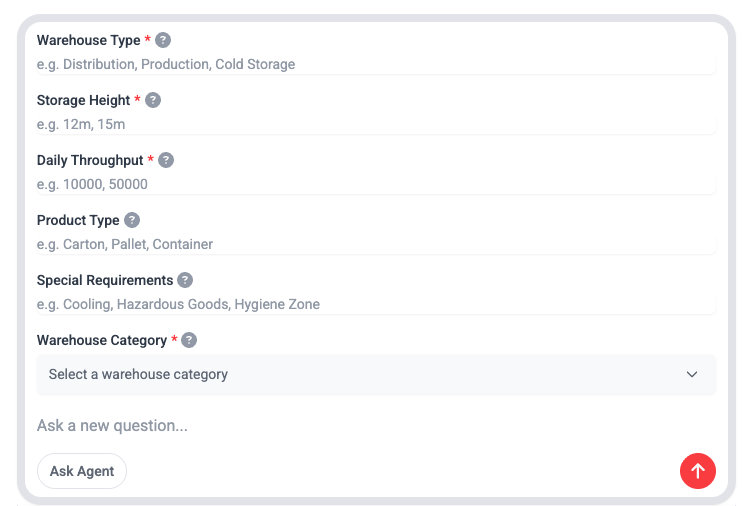
You can configure multiple guided search fields.
Create New Guided Search Fields
You will have to set all fields in both English and German. The following fields are available per guided search field:- Label: The label refers to the name of your guided search field. Will be visible to the user.
- Placeholder: Will be displayed in the input field as an example. If the user clicks on the field, the placeholder will disappear.
- Help Text: the help text will be displayed when the user toggles over the mouse over.
- Required: As an Agent Admin, you can specify whether users must fill out this guided search field in order to send a query.
- Type: You can configure either multiple dropdown options or a free text guided search field.
Dependent Dropdowns
You can configure dropdown fields so that they depend on one another: the option a user selects in one field determines which options are available in the next. This narrows the search step by step, steers users towards the most relevant knowledge, and prevents invalid combinations - which improves the quality of the answers they receive. Example: a user first selects a product line, and the next field then only offers the machine types that belong to that product line.How to Set It Up
1
Prepare a CSV File
Describe how the fields relate to each other in a simple CSV file. Each column stands for one guided search field, and each row describes one valid combination of options.
2
Choose the Level
Dependent dropdowns can be configured either on Agent level or on knowledge asset level. Choose the asset level if the available options differ per knowledge package.
3
Upload the CSV File
Open the Guided Search configuration in the Admin Panel and upload your CSV file. The dependent dropdowns are created from the file.
Whenever the valid combinations change - for example because a new product line is added - upload an updated CSV file.