
Documentation Index
Fetch the complete documentation index at: https://docs.genow.ai/llms.txt
Use this file to discover all available pages before exploring further.
The Use Case Hub is the centrepiece of the Genow platform. This is where company knowledge can be retrieved and reused. Your input is anonymous and is not used for training AI models. We are GDPR (DSGVO) compliant!
Benefits of the Use Case Hub
Stop Searching, Start Acting
Get instant and high quality answers instead of searching through endless folders.
Skip the 'Waiting for a Reply' Game
Access internal knowledge immediately without waiting for a colleague’s reply.
\
\
Get Facts You Can Trust
Get answers based on your company’s data. Every response is verified and tailored to your specific business logic.
In the use case hub, users can access specific company knowledge (rather than the entire company’s knowledge base) from files and internet searches to find answers to their questions. This saves users from having to conduct lengthy searches through documents and files, while ensuring the quality of the output is generally high. Additionally, the provided answers can be processed further using secure AI models, e.g. to write emails or perform additional steps in a process.
Use Cases, Knowledge Assets and Connected Company Data
We differentiate between use cases, knowledge assets and associated data, which can also be abstracted graphically in the user interface. Generally Genow only shows you the use cases and knowledge assets to which you have received access to based on your company’s user rights management.(1) Use Cases
Use cases are found at the highest level of abstraction. These usually relate to an organisational unit or team in your company or to a particularly large knowledge package. They usually represent a specific use case for which specific questions can be queried on a dedicated knowledge package managed by an administrator. Use cases are arranged horizontally in the use case hub in the Genow application. You can usually obtain access to use cases from your IT department or from the administrators of the Genow platform in your company.(2) Knowledge Assets
Various knowledge packages can be created for each use case. These are represented by rectangles after a use case has been selected in Genow and are called ‘knowledge assets’. Only the data from the knowledge assets you have selected will be taken into account when answering a question. Use case administrators can then select specific directories or areas from file systems such as SharePoint, Google Drive, Jira, and Confluence, or other external systems, and assign them to the asset.User Interface of the Use Case Hub
You can navigate to the Use Case Hub using the menu on the left-hand side.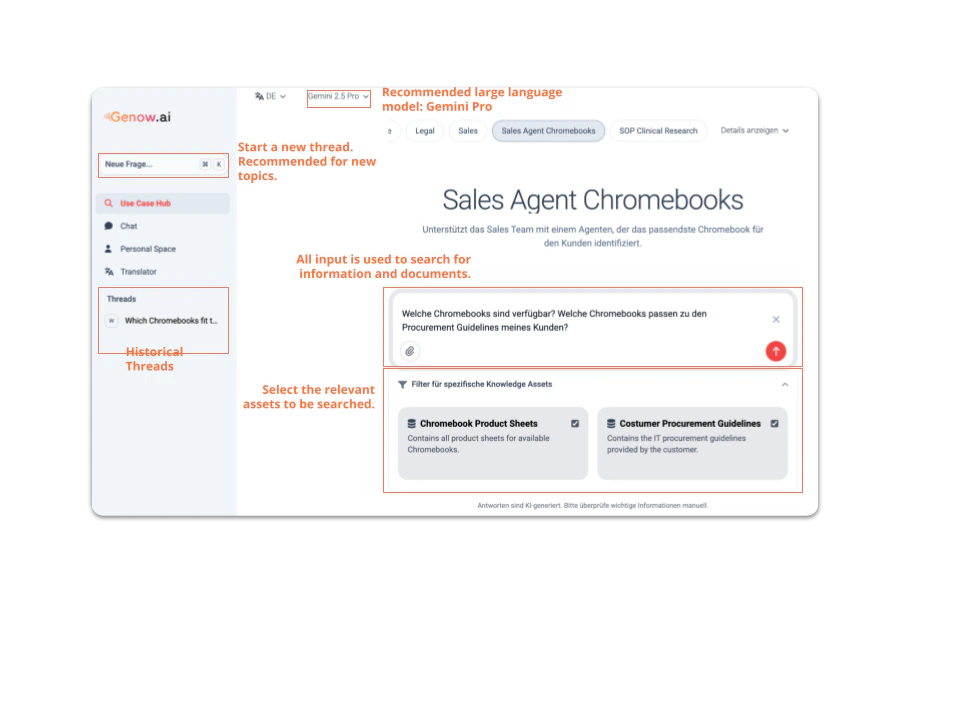
- User interface language settings: Select the language in which the user interface should be displayed. You can currently choose between German and English.
You can type in your questions in any language. Genow will answer in the same language. Selecting the user interface language does not affect the language in the output.
- Large Language Model (LLM) selection:
Choose a LLM
Click here to find out more about this topic.
If you are new to the use of AI or have not heard about the availability of different models or their strengths, we suggest using a Gemini Pro-Model.
Ask Genow for Knowledge - Step-To-Step
Type in Your Question
Select your use case and knowledge asset and use the input field to formulate your question. A first few tips for formulating the question:Additional notes depending on the use case settings:
- Ask detailed questions and provide necessary context. Questions are preferable to key points or keywords.
- New topic? Formulate a new question instead of asking follow-ups.
- Directly search for the information instead of a document name.
Prompting guide
Click here to learn how to prompt and use the Genow platform the best way possible.
Your questions and your company’s knowledge, data, and documents are saved securely and will never be used to train AI models. We are GDPR compliant.
- Your use case administrator can activate and configure a so called guided search where you may have to fill in additional input fields.
- A web search can be configured at the use case level. If activated, a globe icon will appear below your input field. The web search is activated when the icon turns red.
- When activated, you can enter specific URLs (e.g. company.com/site/) into the regular input field. Information from these websites will be used to generate answers if it matches the user’s question.
- In case you are having a complex question, you can use our Deep Research mode. This will take a bit longer than usual but will search on updated search plans. This must be activated on use case level.
Answer Generation
- Genow will use all your inputs to first search (1) and then generate an answer (2).
- Genow will only search for relevant documents in the selected knowledge assets and, if activated, in the web. Activating the web search will slow down the answer generation a bit, as websites have to be visited and scraped to get relevant information.
- The thinking process will be displayed during the answer generation, giving the user information about how the search is performed.
It is important to note that questions about missing documents cannot be answered by Genow.
How the Genow Search and Answer Generation works
Click here to find out how Genow will use your input to search for relevant documents and generate an answer.
Receive an Answer
When you receive an answer, Genow will also provide you with all relevant sources and it’s Thinking Process. These are displayed in different tabs.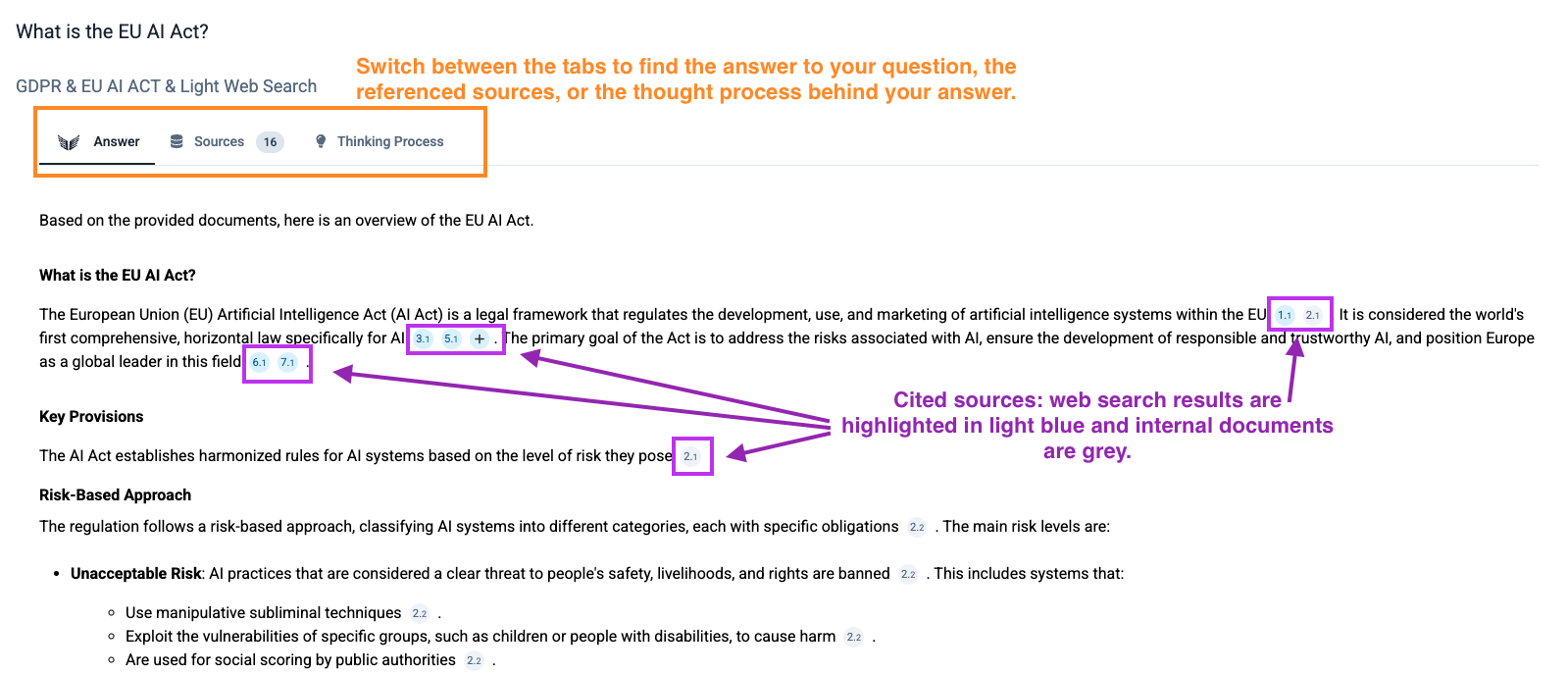
- Answer Tab: In Genow’s answer, a reference is given for each verifiable statement, for example after a sentence. Web search sources are highlighted blue, internal documents are grey.
- If more than three relevant sources are found for a statement, only two references are displayed immediately. Further sources are then hidden behind a + symbol, which you can display by clicking on the symbol.\
- If you ask Genow a question, the application will try to answer your question based on the available information (selected knowledge assets + web search, if applicable). \
- Note that the answer can only be as good as the information available. For this reason, it is worthwhile for you and your organization to improve data quality. \
- If Genow has enough information to answer the question, it will provide you with an answer that includes the referenced sources. When clicking on the source badge, either a new tab will open to open the website or a pdf preview will be seen. You can also download internal files.
- Sources Tab: Sources are sorted by relevance. Relevant text segments from each source will be shown.
- Thinking Process: Genow will provide you with the thought process behind generating the answer.
Possible Next Steps
Note that when performing next steps, like follow-up questions, they are heavily based on the context of previous questions. Open a new window to formulate questions regarding other topics.
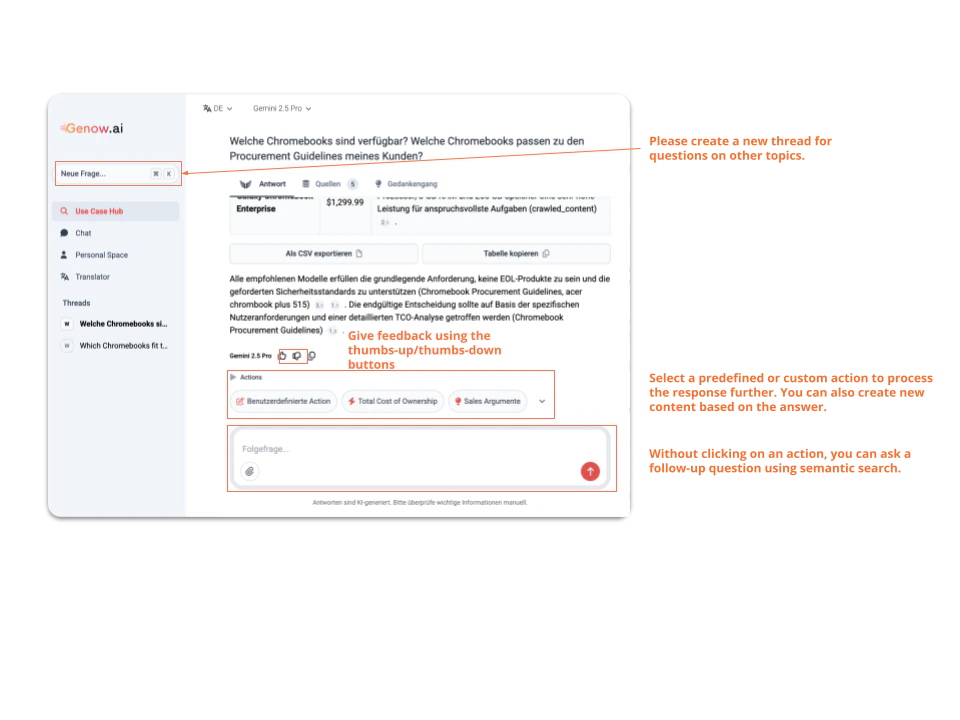
Formulate a follow-up question
You can ask follow-up questions in the input field below the answer. Please formulate a new question in a new thread for new topics, as the follow-up questions take into account a large proportion of the context from the original questions. This can lead to a bias in the answer for new topics.
Suggested Follow-ups
Alternative questions (when activated): Find out more about the documents and their contents used during the answer.
Process the Answers using Actions
Processing answers is only possible by using Action functionality above the input field!
Giving Feedback
Users can give feedback on individual questions. This is done using the ‘thumbs up’ and ‘thumbs down’ icons (see light blue rectangle in the screenshot above). Clicking on one of the icons opens a feedback form, if this has been set up by the use case admin, in which further information can be added. Users should make sure to provide as much contextual information as possible when submitting feedback.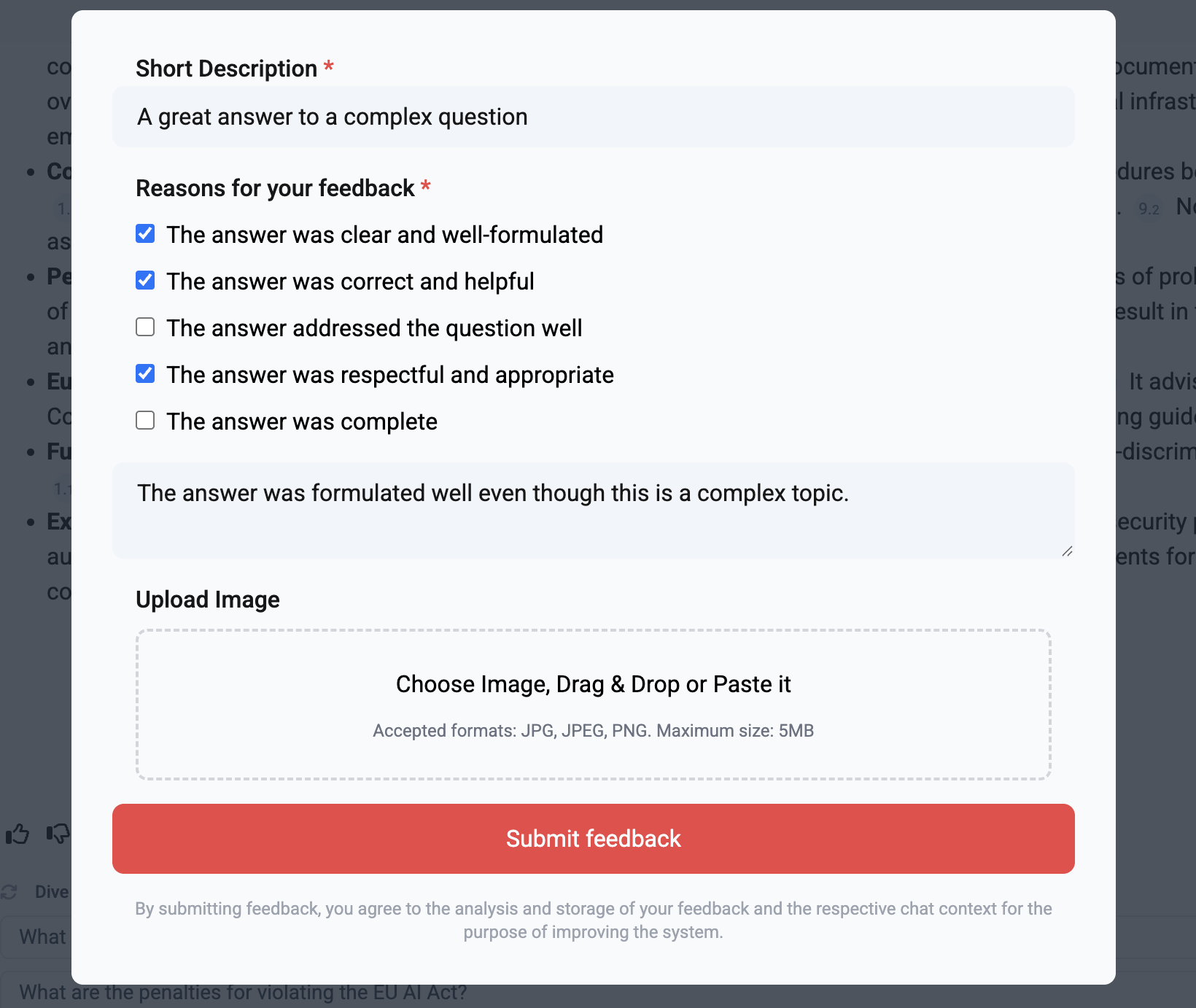
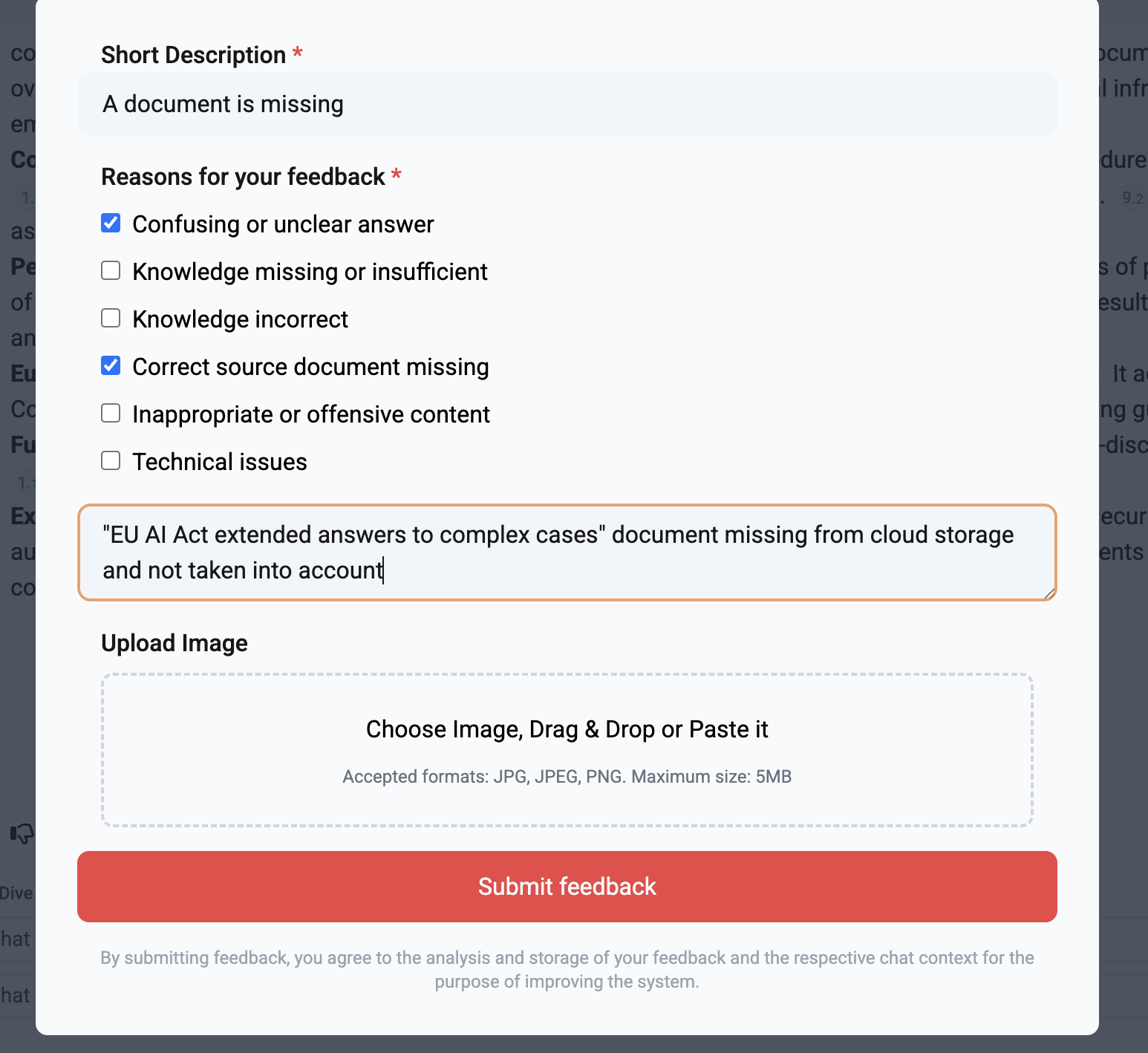
It should be noted that when submitting feedback with your name or e-mail, per default user information is passed on that is helpful for analysing the feedback. You can also use the “I want to send this feedback anonymously”-Button to not provide any personal data. Same applies for the case no e-mail or name is added to the feedback.
- In order to improve access to company knowledge, a learning organisation should fill in missing or incorrect information and data. For this reason, feedback is particularly important when documents are missing that would better answer questions. Positive feedback can also help us understand how satisfied users are with Genow.
- Your use case admin usually analyses feedback and should identify possible follow-up steps following the evaluation.
- Overall, the ability to provide feedback on user queries is a highly relevant function that users should take advantage of.