

Platform admins can upload a Translator Glossary to control how specific terms are translated across the platform. Find out more in the Platform Settings article.
Getting Started: A Quick Look at the Interface
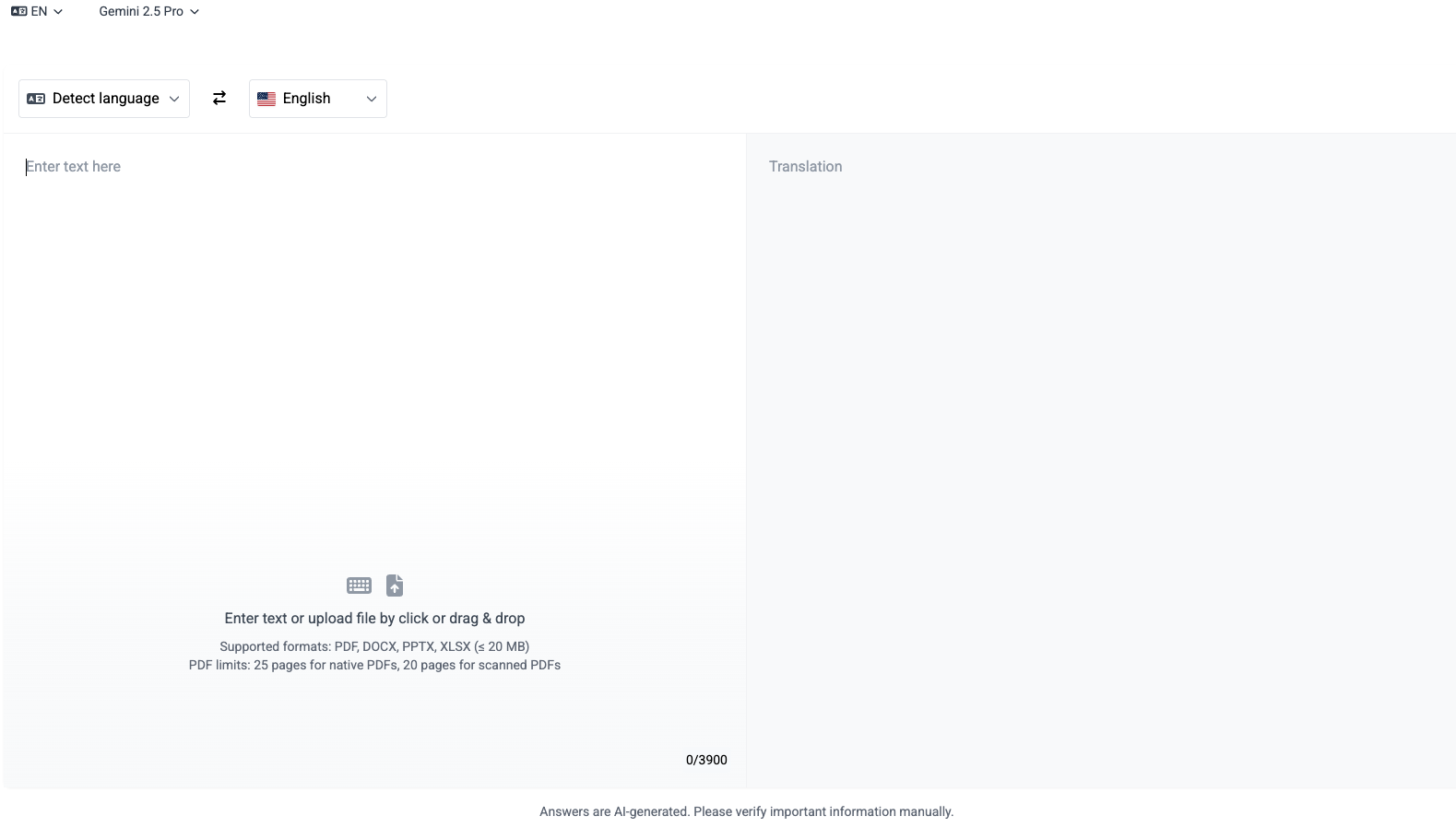
The Translator page is divided into two main sections:- Input (Left Side): This is where you provide the text or document you want to translate.
- Translation (Right Side): This is where your translated result will appear.
Step-By-Step: Translating Your Content
Follow these steps to get your translation.1
Choose the Input and Output Languages
Before you add your text, tell the tool which languages to work with.
- Input Language (on the left): Select the original language of your text. If you’re not sure, simply leave it as Detect Language. The tool will automatically identify the language for you once you enter the text.
- Output Language (on the right): Choose the language you want your text translated into.
Recently added languages include Russian, Polish, Czech, Hungarian, Slovenian, Slovak, Turkish, Swedish, and Danish.
2
Provide the Content to Translate
You have two options for inputting your content: typing/pasting text or uploading a document.
Option A: Translating Text
- Simply type or paste the text you want to translate directly into the input field on the left (“Enter text here”).
- Character Limit: You can translate up to 3900 characters at a time.
Option B: Translating a Document
You can translate entire documents while keeping the original formatting intact. This is perfect for reports, presentations, and other official files.- Click on the “Type text or drag & drop files here” area or the document icon.
- Select the file from your computer.
- Supported file formats: PDF, DOCX, PPTX, XLSX
- Maximum file size: 20MB
- PDF page limits: 25 pages for native PDFs, 20 pages for scanned PDFs
3
Review your Translation
Once you have entered your text or uploaded your file, the translation will automatically appear in the “Translation” box on the right. You can then copy the text for your use.