

Der Agent Hub ist das Herzstück der Genow-Plattform. Hier kann Unternehmenswissen abgerufen und wiederverwendet werden. Deine Eingaben sind anonym und werden nicht zum Training von KI-Modellen verwendet. Wir sind DSGVO-konform!
Vorteile des Agent Hub
Schluss mit Suchen, fang an zu handeln
Erhalte sofort hochwertige Antworten, anstatt dich durch endlose Ordner zu wühlen.
Spar dir das Warten auf eine Antwort
Greif sofort auf internes Wissen zu, ohne auf die Antwort von Kolleginnen und Kollegen zu warten.
Fakten, auf die du dich verlassen kannst
Erhalte Antworten auf Basis der Daten deines Unternehmens. Jede Antwort ist verifiziert und auf deine spezifische Business-Logik zugeschnitten.
Im Agent Hub können Nutzer auf spezifisches Unternehmenswissen (statt auf die gesamte Wissensbasis des Unternehmens) aus Dateien und Internetsuchen zugreifen, um Antworten auf ihre Fragen zu finden. Das erspart den Nutzern langwierige Suchen durch Dokumente und Dateien und stellt gleichzeitig sicher, dass die Qualität der Ausgabe generell hoch ist. Zusätzlich können die bereitgestellten Antworten mit sicheren KI-Modellen weiterverarbeitet werden, z. B. um E-Mails zu schreiben oder weitere Schritte in einem Prozess auszuführen.
Agents, Knowledge Assets und verbundene Unternehmensdaten
Wir unterscheiden zwischen Agents, Knowledge Assets und zugehörigen Daten, die in der Benutzeroberfläche auch grafisch abstrahiert dargestellt werden können. Generell zeigt dir Genow nur die Agents und Knowledge Assets an, auf die du basierend auf der Benutzerrechteverwaltung deines Unternehmens Zugriff erhalten hast.(1) Agents
Agents befinden sich auf der höchsten Abstraktionsebene. Sie beziehen sich in der Regel auf eine Organisationseinheit oder ein Team in deinem Unternehmen oder auf ein besonders großes Wissenspaket. Sie repräsentieren normalerweise einen bestimmten Use Case, für den spezifische Fragen zu einem dedizierten Wissenspaket gestellt werden können, das von einem Administrator verwaltet wird. Deine zuletzt verwendeten Agents erreichst du direkt unter dem Eingabefeld, und die vollständige Liste öffnest du über Browse all agents. Zugriff auf Agents erhältst du in der Regel von deiner IT-Abteilung oder von den Administratoren der Genow-Plattform in deinem Unternehmen.(2) Knowledge Assets
Für jeden Agent können verschiedene Wissenspakete erstellt werden. Nachdem du einen Agent ausgewählt hast, wählst du seine Wissenspakete - genannt ‘Knowledge Assets’ - unter Nach bestimmtem Wissen filtern aus. Nur die Daten aus den von dir ausgewählten Knowledge Assets werden bei der Beantwortung einer Frage berücksichtigt. Agent-Administratoren können dann bestimmte Verzeichnisse oder Bereiche aus Dateisystemen wie SharePoint, Google Drive, Jira und Confluence oder anderen externen Systemen auswählen und dem Asset zuordnen.Benutzeroberfläche des Agent Hub
Starte jede Unterhaltung an einem Ort: Klicke im linken Menü auf New. Dich begrüßt ein persönlicher Startbildschirm, und im Eingabefeld darunter entscheidest du, wie Genow für dich arbeiten soll.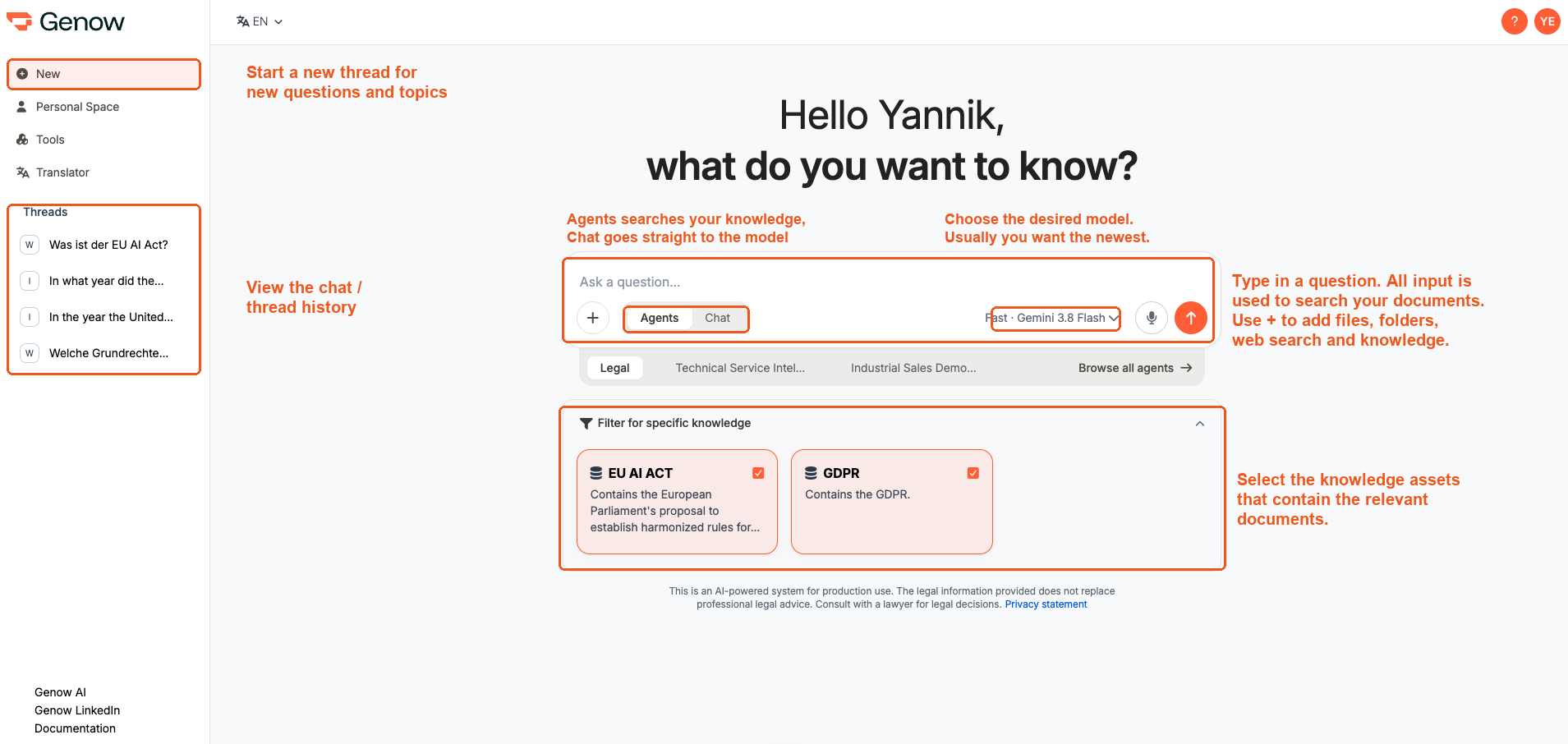
Navigation und Profilmenü
In der linken Seitenleiste findest du New (startet eine neue Unterhaltung), deinen Personal Space, den Translator und - wenn du die nötigen Rechte hast - Administration. Darunter liegen deine zuletzt verwendeten und mit dir geteilten Chats (einklappbar); ganz unten findest du externe Links. In der unteren linken Ecke zeigt dir eine Profilkarte deinen Namen und deine E-Mail-Adresse. Ein Klick darauf öffnet das Profilmenü mit den Profileinstellungen, deiner Nutzung (Usage), dem Help Center, der Sprachauswahl und dem Log-out. Du erreichst es von jedem Bildschirm aus. Es gibt keine feste Kopfzeile mehr - eine schmale Kopfzeile zeigt den Namen des Agents und den aktuellen Chat an.Agents oder Chat
Direkt im Eingabefeld wechselst du zwischen zwei Modi:- Agents (die Standardeinstellung) beantwortet deine Frage mit dem Wissen, das für den ausgewählten Agent konfiguriert ist.
- Chat sendet deine Frage direkt an das Sprachmodell, ohne dein Unternehmenswissen zu durchsuchen - praktisch für schnelle Aufgaben wie das Umformulieren eines Textes. Mehr dazu erfährst du im Artikel Chat.
Wenn Chat für deine Organisation deaktiviert ist, wird der Umschalter ausgeblendet. Dein Gesprächsverlauf in der Seitenleiste passt sich dem ausgewählten Modus an, während dein Personal Space an seinem Platz bleibt.
Deinen Agent auswählen
Deine drei zuletzt verwendeten Agents - oder deine Favoriten - erscheinen direkt unter dem Eingabefeld. Klicke auf Browse all agents, um eine Übersicht aller Agents zu öffnen, auf die du Zugriff hast. Das Info-Symbol an einem Agent zeigt dessen Beschreibung, Knowledge Assets und Contact Persons an.Eingaben über das Plus-Menü hinzufügen
Das +-Menü neben dem Eingabefeld bündelt alles, was du zu einer Frage hinzufügen kannst. Im Agent-Modus bietet es dir Dateien oder Ordner, Websuche und Knowledge Assets. Im Chat-Modus öffnet es direkt die Dateiauswahl. Sobald du deinen Agent ausgewählt hast, formuliere deine Frage im Eingabefeld. Drücke deine Enter-Taste oder den Senden-Button rechts, und Genow durchsucht das verbundene Wissen der ausgewählten Assets - und das Web, falls die Websuche aktiv ist -, um deine Frage zu beantworten. Zusätzlich kannst du aus den folgenden Einstellungen wählen:- Spracheinstellungen der Benutzeroberfläche: Wähle die Sprache aus, in der die Benutzeroberfläche angezeigt werden soll. Aktuell kannst du zwischen Deutsch und Englisch wählen.
Du kannst deine Fragen in jeder beliebigen Sprache eingeben. Genow antwortet in derselben Sprache. Die Auswahl der Sprache der Benutzeroberfläche wirkt sich nicht auf die Sprache der Ausgabe aus.
- Auswahl von Large Language Model (LLM) und Response Mode: Beides wählst du direkt im Eingabefeld aus. Neben dem Modell kannst du einen Response Mode wählen - Fast, Balanced oder Precise.
Wähle ein LLM
Klicke hier, um mehr über dieses Thema zu erfahren.
Wenn du neu im Umgang mit KI bist oder noch nichts über die Verfügbarkeit verschiedener Modelle oder deren Stärken gehört hast, behalte den Standard-Response-Mode Fast bei. Für die meisten Aufgaben ist er die richtige Wahl.
Genow nach Wissen fragen - Schritt für Schritt
Gib deine Frage ein
Wähle deinen Agent und dein Knowledge Asset aus und formuliere deine Frage im Eingabefeld. Ein paar erste Tipps zum Formulieren der Frage:Zusätzliche Hinweise je nach Agent Settings:
- Stelle detaillierte Fragen und gib den nötigen Kontext an. Fragen sind Stichpunkten oder Schlagwörtern vorzuziehen.
- Neues Thema? Formuliere eine neue Frage, anstatt Folgefragen zu stellen.
- Suche direkt nach der Information statt nach einem Dokumentnamen.
Prompting-Leitfaden
Klicke hier, um zu erfahren, wie du die Genow-Plattform optimal promptest und nutzt.
Deine Fragen sowie das Wissen, die Daten und die Dokumente deines Unternehmens werden sicher gespeichert und niemals zum Training von KI-Modellen verwendet. Wir sind DSGVO-konform.
- Dein Agent-Administrator kann eine sogenannte Guided Search aktivieren und konfigurieren, bei der du möglicherweise zusätzliche Eingabefelder ausfüllen musst. Guided-Search-Felder können auch voneinander abhängen, sodass deine Auswahl in einem Feld die Optionen im nächsten bestimmt.
- Dein Agent-Administrator kann Example Questions konfigurieren. Wenn eingerichtet, erscheinen diese als anklickbare Einstiegsfragen im Eingabefeld, um dir den Einstieg zu erleichtern.
- Eine Websuche kann auf Agent-Ebene konfiguriert werden. Wenn sie aktiviert ist, erscheint ein Globus-Symbol unter deinem Eingabefeld. Die Websuche ist aktiviert, wenn das Symbol rot wird.
- Wenn aktiviert, kannst du bestimmte URLs (z. B. company.com/site/) in das reguläre Eingabefeld eingeben. Informationen von diesen Websites werden zur Generierung von Antworten verwendet, wenn sie zur Frage des Nutzers passen.
- Bei komplexen Fragen wendet Genow automatisch Deep Research an: Es plant, recherchiert und überprüft seine Erkenntnisse, bevor es antwortet. Das dauert etwas länger als eine einfache Abfrage, geschieht aber automatisch bei jeder Frage - du musst nichts aktivieren.
- Dateien und Bilder: Lade Dokumente und Bilder direkt in einer Suche oder einem Thread hoch und nutze sie als Kontext - ideal für ein einmaliges Dokument, das du nicht zu einem Knowledge Asset hinzufügen möchtest.
- Spracheingabe: Klicke auf das Mikrofon-Symbol im Eingabefeld, um deine Frage zu diktieren, statt sie zu tippen. Das ist besonders praktisch für längere Prompts und wenn du unterwegs bist.
Antwortgenerierung
- Genow verwendet alle deine Eingaben, um zuerst zu suchen (1) und dann eine Antwort zu generieren (2).
- Genow sucht nur in den ausgewählten Knowledge Assets und, falls aktiviert, im Web nach relevanten Dokumenten. Das Aktivieren der Websuche verlangsamt die Antwortgenerierung etwas, da Websites besucht und ausgelesen werden müssen, um relevante Informationen zu erhalten.
- Während der Antwortgenerierung wird eine übersichtliche Darstellung des Prozesses von Genow angezeigt, die dir Einblick gibt, wie die Suche durchgeführt wird. Der rohe interne Denktext wird nicht mehr angezeigt, sodass der Prozess leichter nachzuvollziehen ist.
Wichtig zu wissen: Fragen zu fehlenden Dokumenten können von Genow nicht beantwortet werden.
Wie die Genow-Suche und Antwortgenerierung funktioniert
Klicke hier, um herauszufinden, wie Genow deine Eingabe nutzt, um nach relevanten Dokumenten zu suchen und eine Antwort zu generieren.
Eine Antwort erhalten
Wenn du eine Antwort erhältst, stellt dir Genow auch alle relevanten Quellen und seinen Thinking Process zur Verfügung. Diese werden in verschiedenen Tabs angezeigt.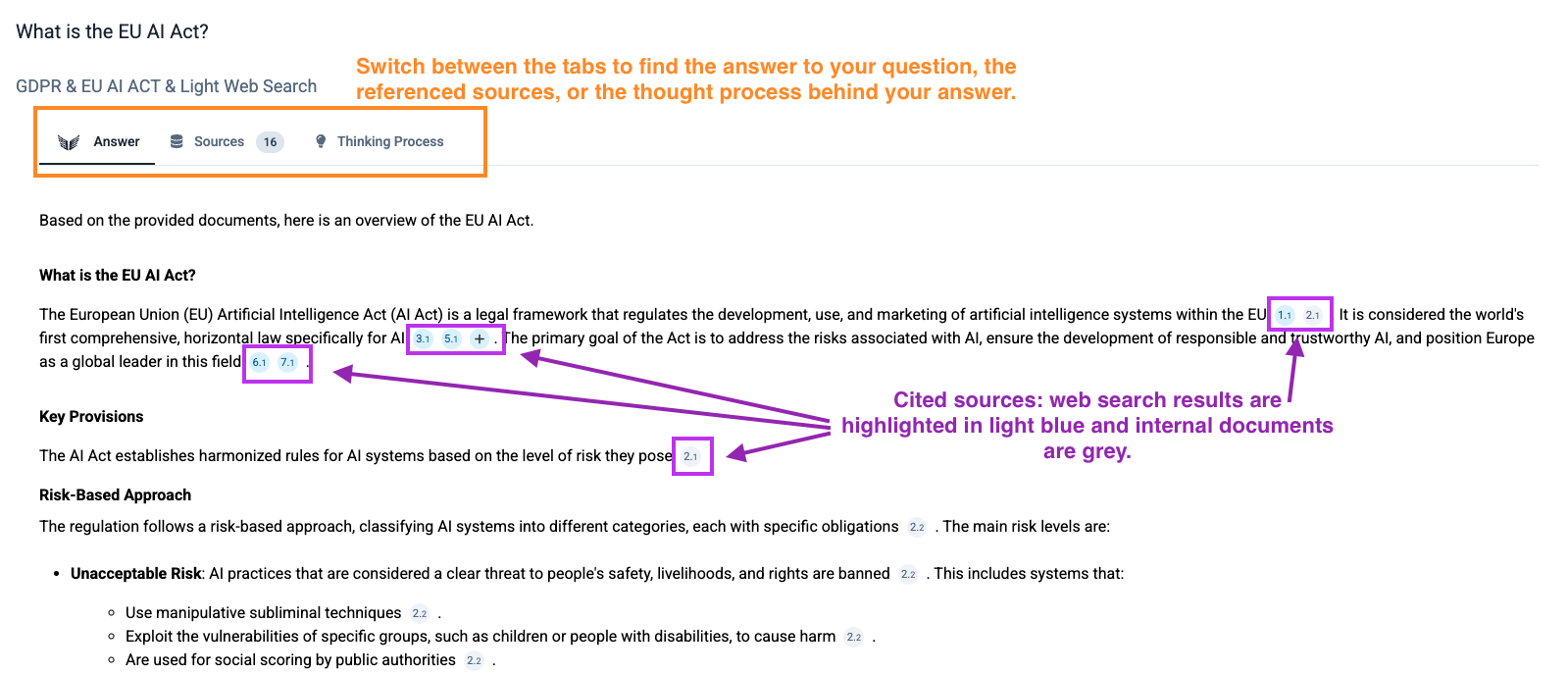
- Answer-Tab: In der Antwort von Genow wird für jede überprüfbare Aussage eine Quellenangabe gegeben, zum Beispiel nach einem Satz. Websuche-Quellen sind blau hervorgehoben, interne Dokumente grau.
- Wenn für eine Aussage mehr als drei relevante Quellen gefunden werden, werden nur zwei Quellenangaben sofort angezeigt. Weitere Quellen werden dann hinter einem +-Symbol ausgeblendet, das du durch Klicken auf das Symbol anzeigen kannst.\
- Wenn du Genow eine Frage stellst, versucht die Anwendung, deine Frage auf Basis der verfügbaren Informationen zu beantworten (ausgewählte Knowledge Assets + Websuche, falls zutreffend). \
- Beachte, dass die Antwort nur so gut sein kann wie die verfügbaren Informationen. Aus diesem Grund lohnt es sich für dich und deine Organisation, die Datenqualität zu verbessern. \
- Wenn Genow genügend Informationen hat, um die Frage zu beantworten, erhältst du eine Antwort, die die referenzierten Quellen enthält. Wenn du auf das Quellen-Badge klickst, öffnet sich entweder ein neuer Tab zum Öffnen der Website oder du siehst eine PDF-Vorschau. Du kannst interne Dateien auch herunterladen.
- Sources-Tab: Die Quellen sind nach Relevanz sortiert. Relevante Textabschnitte aus jeder Quelle werden angezeigt.
- Thinking Process: Genow zeigt eine übersichtliche, schrittweise Liste, wie es an deiner Frage gearbeitet hat - jeder Schritt mit einer kurzen, verständlichen Beschreibung und einem eigenen Symbol. Die Schritte sind standardmäßig eingeklappt, damit die Antwort im Fokus bleibt; klappe einen beliebigen Schritt auf, um die Details zu sehen, etwa die durchgeführten Websuchen und deren Ergebnisse. Der rohe interne Denktext wird nicht mehr angezeigt, sodass auch lange, mehrstufige Durchläufe leicht nachvollziehbar bleiben.
Wenn du ein referenziertes Dokument in der Vorschau öffnest, kannst du es direkt in der Vorschau in deine Sprache übersetzen - kein Download erforderlich.
Mögliche nächste Schritte
Beachte, dass nächste Schritte wie Folgefragen stark auf dem Kontext vorheriger Fragen basieren. Öffne ein neues Fenster, um Fragen zu anderen Themen zu formulieren.
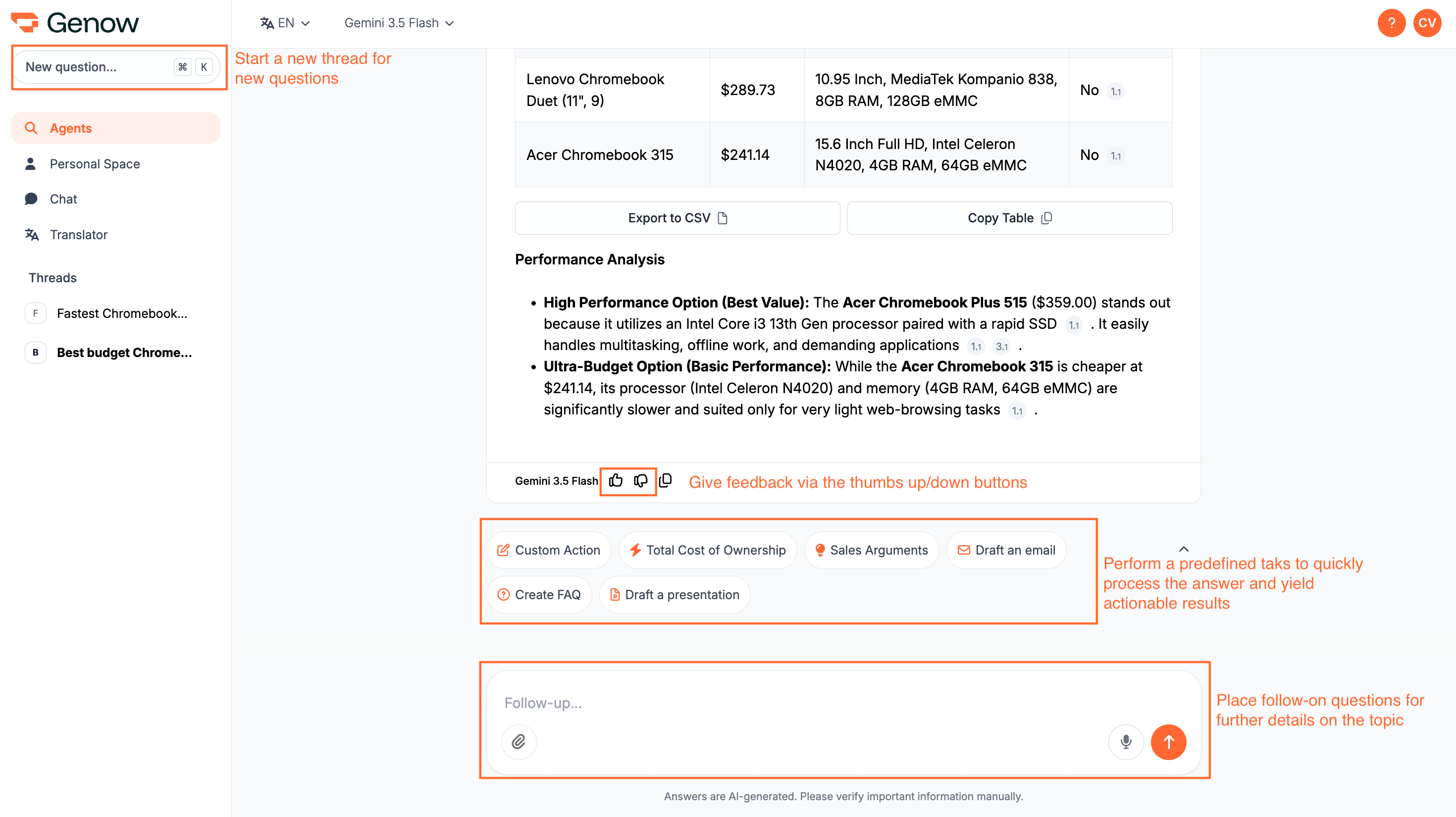
1
Eine Folgefrage formulieren
Du kannst Folgefragen im Eingabefeld unterhalb der Antwort stellen. Bitte formuliere für neue Themen eine neue Frage in einem neuen Thread, da Folgefragen einen großen Teil des Kontexts aus den ursprünglichen Fragen berücksichtigen. Das kann bei neuen Themen zu einer Verzerrung der Antwort führen.
2
Vorgeschlagene Folgefragen
Alternative Fragen (wenn aktiviert): Erfahre mehr über die Dokumente und deren Inhalte, die bei der Antwort verwendet wurden.
3
Die Antworten mit Actions weiterverarbeiten
Das Weiterverarbeiten von Antworten ist nur über die Action-Funktionalität oberhalb des Eingabefelds möglich!
Zurück zu deinem letzten Agent
Wenn du von einem Agent zur Administration und wieder zurück wechselst, bringt dich Genow zu dem Agent zurück, mit dem du zuletzt gearbeitet hast - zum Beispiel nachdem du eine Einstellung geändert hast. Wenn kein zuvor aktiver Agent verfügbar ist, landest du beim ersten Agent in deiner Liste.Wenn dir überhaupt keine Agents zur Verfügung stehen - weil noch keine existieren oder du keinen Zugriff hast - zeigen der Agent Hub, das Feedback Dashboard und das Analytics Dashboard eine kurze Nachricht an, die erklärt, was als Nächstes zu tun ist. Je nach deiner Rolle verweist dich diese auf deinen Administrator, auf deinen Personal Space oder auf die Möglichkeit, einen Agent zu erstellen.
Feedback geben
Nutzer können Feedback zu einzelnen Fragen geben. Das geschieht über die Symbole ‘Daumen hoch’ und ‘Daumen runter’ (siehe hellblaues Rechteck im Screenshot oben). Ein Klick auf eines der Symbole öffnet ein Feedback-Formular, sofern dieses vom Agent-Admin eingerichtet wurde, in dem weitere Informationen ergänzt werden können. Nutzer sollten beim Absenden von Feedback möglichst viele kontextbezogene Informationen angeben.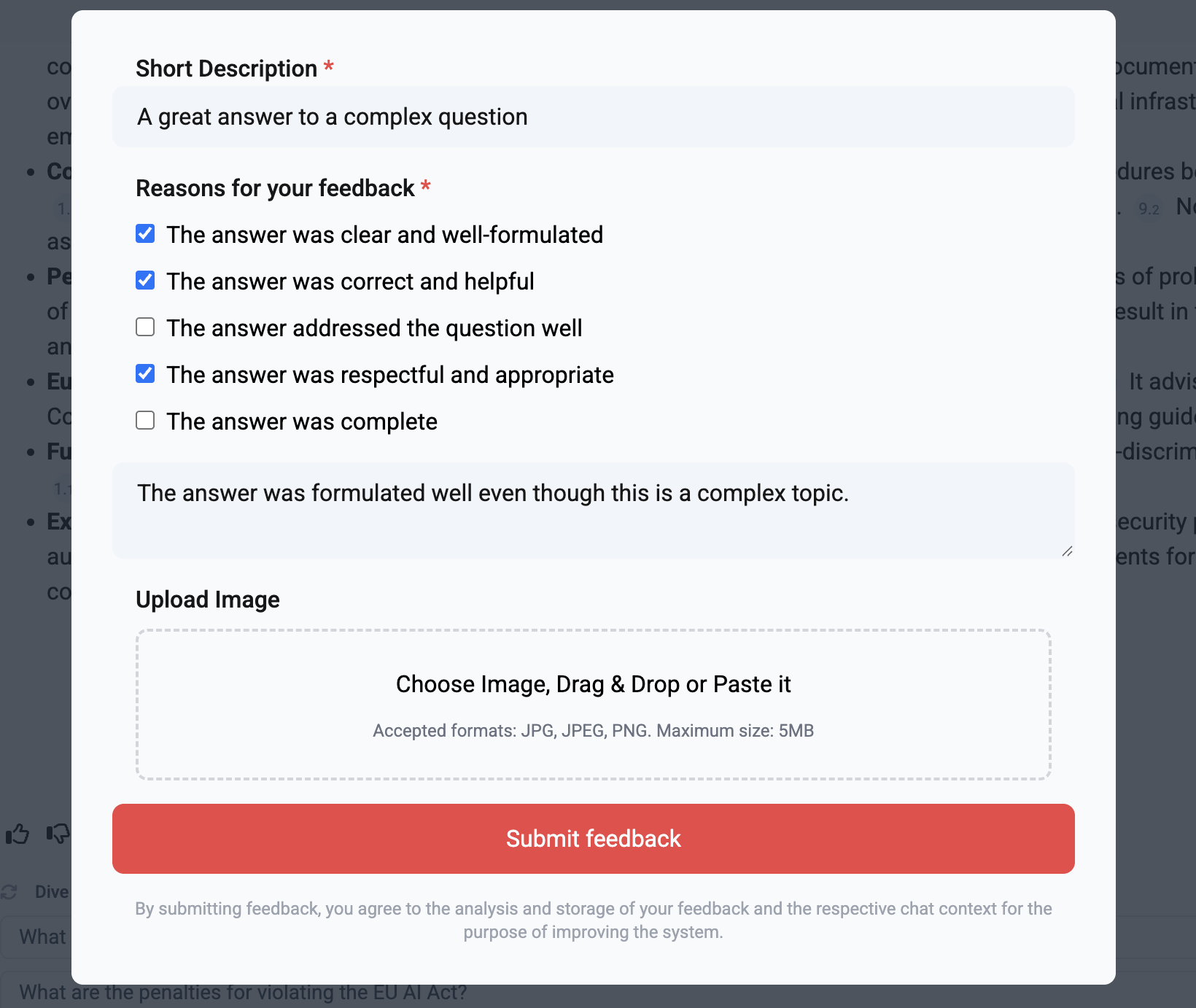
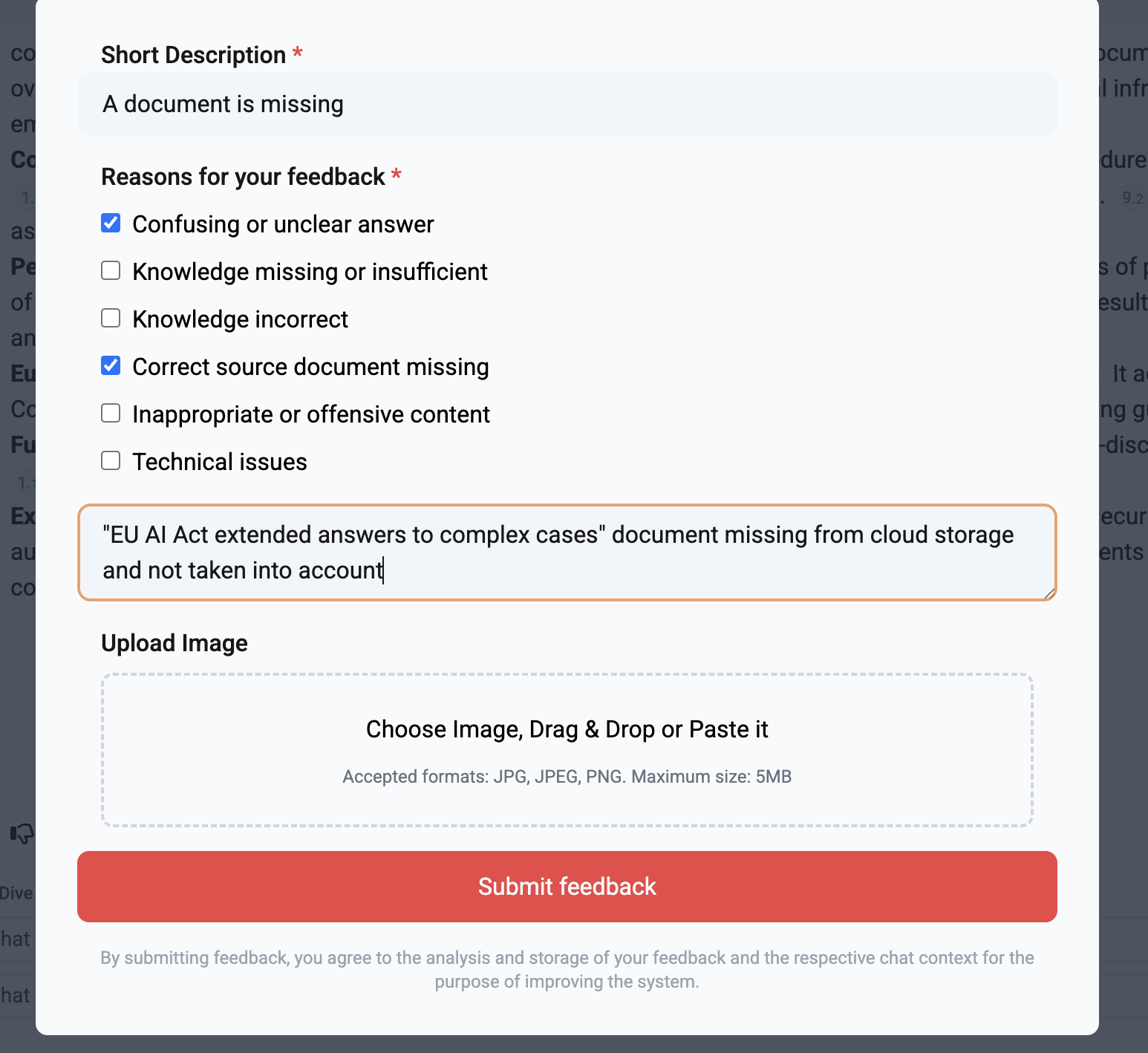
Beachte, dass beim Absenden von Feedback mit deinem Namen oder deiner E-Mail standardmäßig Nutzerinformationen weitergegeben werden, die für die Analyse des Feedbacks hilfreich sind. Du kannst auch den Button “Ich möchte dieses Feedback anonym senden” verwenden, um keine personenbezogenen Daten anzugeben. Das Gleiche gilt, wenn dem Feedback keine E-Mail oder kein Name hinzugefügt wird.
- Um den Zugang zu Unternehmenswissen zu verbessern, sollte eine lernende Organisation fehlende oder falsche Informationen und Daten ergänzen. Aus diesem Grund ist Feedback besonders wichtig, wenn Dokumente fehlen, die Fragen besser beantworten würden. Positives Feedback kann uns auch helfen zu verstehen, wie zufrieden Nutzer mit Genow sind.
- Dein Agent-Admin analysiert in der Regel das Feedback und sollte im Anschluss an die Auswertung mögliche Folgeschritte identifizieren.
- Insgesamt ist die Möglichkeit, Feedback zu Nutzeranfragen zu geben, eine sehr relevante Funktion, die Nutzer nutzen sollten.