> ## Documentation Index
> Fetch the complete documentation index at: https://docs.genow.ai/llms.txt
> Use this file to discover all available pages before exploring further.
# Setup of Your New Agent
> In this article, we will describe the steps needed to set up your Agent.
**Your Agent will be created by system admins of your company’s Genow platform.** This article describes all the needed information and steps you have to think about before finishing the setup of your Agent (step 1-4). After the creation of the Agent, you normally will be able to assign knowledge yourself via the admin panel (step 5). If you have any questions regarding the setup of your Agent, contact your system admin for the Genow platform first.
***
## Agent Setup Preparation
* Name of your Agent in both English and German.
* Description of your Agent in both English and German.
Both field will be displayed to the end user.
For this second step, it is **crucial** to understand the [differences between Agents, knowledge assets and knowledge sources](/use-case-management/knowledge/knowledge-abstractions) and the implications on syncs and user permissions. For this reason, please read this article first! Based on the planned distribution of knowledge in assets and sources, the system administrator creates the necessary groups and assigns them the necessary permissions. Regarding user permissions, we integrate in your EntraID if available.
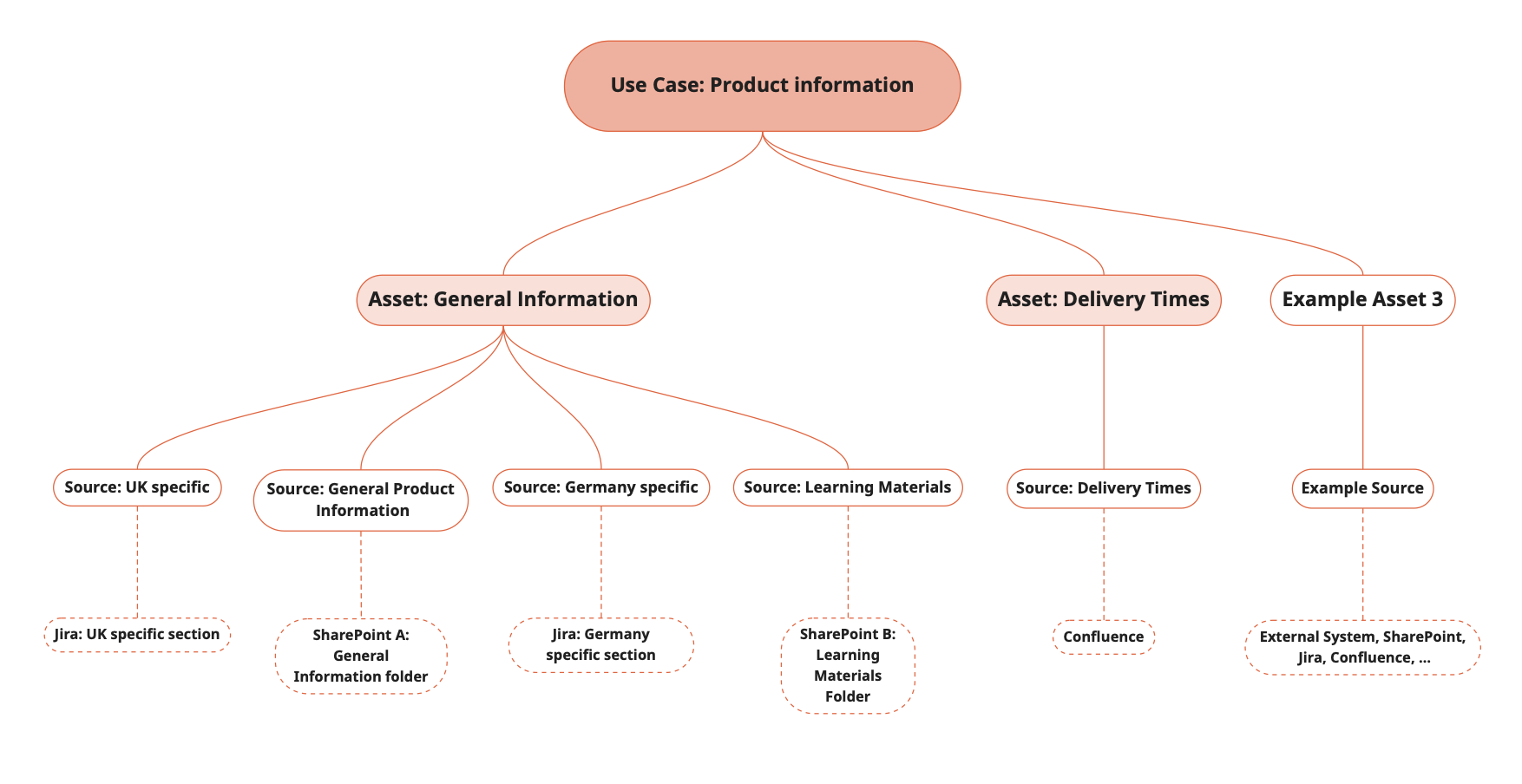 You will need to create the following amount of knowledge sources: Sources = amount of required assets \* data systems \* permission groups
* We need to map sources to assets.
* Each asset must have at least one source.
* Only one knowledge system (SharePoint, Google Drive, Jira, Websearch or Confluence) can be referenced for each source.
* Permissions and content synchronisation are both assigned at the knowledge source level.
* Managing multiple sources is time-consuming, and the price per user request increases with each additional source.
* **The number of sources to be created therefore depends on the authorization concept, the number of knowledge systems, and the process for synchronizing and updating the connected documents and files.**
The table form can help you to structure your Agent.
**You can define your knowledge assets and sources using the following table:**
Taking the example above, the resulting table would be:
| Knowledge Asset Name | Knowledge Source Name | Knowledge System Folder / Site (optional, but best practice) | Remarks on Permissions |
| -------------------- | --------------------------------------------------------- | ------------------------------------------------------------ | ---------------------- |
| General Information | product-finormation- everyone-general-product-information | SharePoint A/product | Everyone |
| | product-information-germany | Jira/projectGER | Group GER |
| | product-information-uk | Jira/projectUK | Group UK |
| | product-information-everyone-learning-materials | SharePoint B/LearningMaterials | Everyone |
| Delivery Times | product-information-everyone-delivery-times | Confluence | Everyone |
| Example Asset 3 | Example Source | One of SharePoint, Jira or Confluence (or external systems) | ... |
| ... | ... | ... | ... |
* In the shown example, three groups will be needed for end users (add. one admin group).
* The total amount of knowledge sources is 5 (for the General Information and Delivery Times asset)
* **For each knowledge asset, a name and a description in both English and German are required and will be displayed to the user.**
**After your Agent has been created, you can then select your data management system and the scope for each knowledge source.**
For each data systems, there are steps required before the setup can be completed in the Agent settings via the Genow admin panel. Make sure, that you perform the necessary steps beforehand.
* [SharePoint](https://docs.genow.ai/use-case-management/knowledge/sharepoint-connector) (Contact your IT department so that Genow can be granted access to your SharePoint site),
* [Jira](/use-case-management/knowledge/jira-connector) (Genow will need the credentials for a service user),
* [Confluence](/use-case-management/knowledge/confluence-connector) (Genow will need a user email and the associated API token), and
* [Google Drive](https://docs.genow.ai/use-case-management/manage-your-knowledge/google-drive-connector) (You will need to grant access to the relevant folders for our service account).
Please keep in mind that only data or documents from folders that are fully selected are synced. **Documents from a parent folder that is not fully selected will not be synced**. In this case, **please move all relevant data into fully selected folders**.
Genow can handle complex permission groups down to folder (SharePoint or Google Drive) or section level. For each permission group, one permission role will be needed, which groups the necessary access permission to knowledge.
> Permission roles, which hold a specific set of permissions for a knowledge source, are assigned to a permission group from your company’s IAM system. Contact your IT department to assign new permissions to groups or add new users to existing ones. One role is needed per user group.
**Before setting up your Agent, consider the needs of the various end user groups, bearing in mind that they will be assigned different role permissions later in the process.** For every user the following information is needed:
* Name of the user
* E-mail
* Permission Group (Admin? End user? Regional user?)
Data quality and availability is a crucial topic when it comes to ask questions on internal company knowledge. We recommend having a look into our Data Maintenance documentation. You will also find information about supported file formats in this article.
Improve your data quality!
After your system admin has created the Agent, you can assign knowledge via the admin panel. For this, follow our detailed guide:
Are you interested in learning the next steps to ensure the success of your Agent?
You will need to create the following amount of knowledge sources: Sources = amount of required assets \* data systems \* permission groups
* We need to map sources to assets.
* Each asset must have at least one source.
* Only one knowledge system (SharePoint, Google Drive, Jira, Websearch or Confluence) can be referenced for each source.
* Permissions and content synchronisation are both assigned at the knowledge source level.
* Managing multiple sources is time-consuming, and the price per user request increases with each additional source.
* **The number of sources to be created therefore depends on the authorization concept, the number of knowledge systems, and the process for synchronizing and updating the connected documents and files.**
The table form can help you to structure your Agent.
**You can define your knowledge assets and sources using the following table:**
Taking the example above, the resulting table would be:
| Knowledge Asset Name | Knowledge Source Name | Knowledge System Folder / Site (optional, but best practice) | Remarks on Permissions |
| -------------------- | --------------------------------------------------------- | ------------------------------------------------------------ | ---------------------- |
| General Information | product-finormation- everyone-general-product-information | SharePoint A/product | Everyone |
| | product-information-germany | Jira/projectGER | Group GER |
| | product-information-uk | Jira/projectUK | Group UK |
| | product-information-everyone-learning-materials | SharePoint B/LearningMaterials | Everyone |
| Delivery Times | product-information-everyone-delivery-times | Confluence | Everyone |
| Example Asset 3 | Example Source | One of SharePoint, Jira or Confluence (or external systems) | ... |
| ... | ... | ... | ... |
* In the shown example, three groups will be needed for end users (add. one admin group).
* The total amount of knowledge sources is 5 (for the General Information and Delivery Times asset)
* **For each knowledge asset, a name and a description in both English and German are required and will be displayed to the user.**
**After your Agent has been created, you can then select your data management system and the scope for each knowledge source.**
For each data systems, there are steps required before the setup can be completed in the Agent settings via the Genow admin panel. Make sure, that you perform the necessary steps beforehand.
* [SharePoint](https://docs.genow.ai/use-case-management/knowledge/sharepoint-connector) (Contact your IT department so that Genow can be granted access to your SharePoint site),
* [Jira](/use-case-management/knowledge/jira-connector) (Genow will need the credentials for a service user),
* [Confluence](/use-case-management/knowledge/confluence-connector) (Genow will need a user email and the associated API token), and
* [Google Drive](https://docs.genow.ai/use-case-management/manage-your-knowledge/google-drive-connector) (You will need to grant access to the relevant folders for our service account).
Please keep in mind that only data or documents from folders that are fully selected are synced. **Documents from a parent folder that is not fully selected will not be synced**. In this case, **please move all relevant data into fully selected folders**.
Genow can handle complex permission groups down to folder (SharePoint or Google Drive) or section level. For each permission group, one permission role will be needed, which groups the necessary access permission to knowledge.
> Permission roles, which hold a specific set of permissions for a knowledge source, are assigned to a permission group from your company’s IAM system. Contact your IT department to assign new permissions to groups or add new users to existing ones. One role is needed per user group.
**Before setting up your Agent, consider the needs of the various end user groups, bearing in mind that they will be assigned different role permissions later in the process.** For every user the following information is needed:
* Name of the user
* E-mail
* Permission Group (Admin? End user? Regional user?)
Data quality and availability is a crucial topic when it comes to ask questions on internal company knowledge. We recommend having a look into our Data Maintenance documentation. You will also find information about supported file formats in this article.
Improve your data quality!
After your system admin has created the Agent, you can assign knowledge via the admin panel. For this, follow our detailed guide:
Are you interested in learning the next steps to ensure the success of your Agent?