> ## Documentation Index
> Fetch the complete documentation index at: https://docs.genow.ai/llms.txt
> Use this file to discover all available pages before exploring further.
# Getting Started as an Agent Admin
> In this article, we outline the essential preparations required to set up your new Agent. Additionally, we’ll provide general information about the responsibilities of the Agent administrator.
Genow focuses on dividing your company knowledge into **Agents**. Agents are dedicated to knowledge or documents that are directly related to a team or organizational unit. An optimized Agent can then be implemented, which processes questions from employees with high quality and further processes them using tools. This allows your processes to be precisely covered by Genow. These Agent-specific capabilities can be adapted to the needs of your teams using various features.
The role of an Agent Admin is a powerful role. An Agent administrator has a wide range of tasks: managing and improving the knowledge base, analyzing and evaluating feedback, identifying specific use scenarios, configuring Agent settings, and identifying user groups.
## New to the Genow Platform?
If you’re new to the Genow platform, we recommend reading our generalist articles about our application first:
[Our user guides in the product-section of this helpcenter might also be helpful!](/product/user-guides/agent-hub)
***
## Ready to Set Up Your New Agent?
Your Agent will be set up by the person responsible for the platform in your company. We will describe everything you need to prepare in the following article:
***
## The Admin Panel - Your Agent Control Center
The admin center will provide you with all needed features to fully control and manage your Agent.
**How to find the admin panel**
After logging into the Genow platform, you will find a round button with your initials in the top right corner. Click on this button to find the link to the admin panel. Navigate to `Agents` and click on your Agent entry.
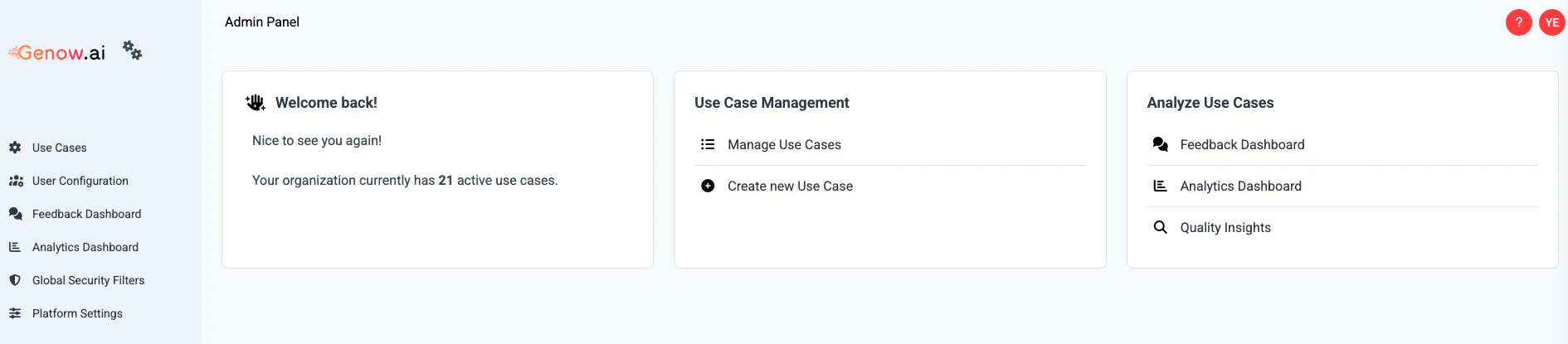 **You now find yourself in the Agent settings. There are three setting blocks:**
1. **Knowledge Management:** create new sources and assets or manage existing ones; trigger synchronizations.
2. **Personalize Agent:** add additional context to your Agent, which will be used for searching and answer generation. Configure additional settings.
3. **Evaluate Agent:** Use the feedback provided by users and the usage of your Agent to optimize it.
***
### (1) Manage Your Knowledge
Another crucial step is to grasp how knowledge packages are abstracted in Genow. [You can find an article on this topic here.](/use-case-management/knowledge/knowledge-abstractions) This knowledge is pivotal for the subsequent setup and management of the knowledge relevant to your Agent.
**Generally, to set up the knowledge base of your Agent, there are two steps to follow:**
Available options are: Sharepoint, Google Drive, Jira and Confluence.
Lower down the scope to the documents and directory that really matter for your use case.
Lower down the scope to the documents and directory that really matter for your Agent.
The granting of **permissions** is based on knowledge source level. This allows the representation of complex permission groups.
#### Improve Your Knowledge Base
Improving the knowledge base is a crucial step in both preparing the use case, testing and after the use case goes live.
Although our search and answer generation is of high quality, the quality of Genow's answers depends on the quality of the data basis for your Agent. Providing high-quality data is a crucial step in achieving high-quality outputs.
Find our guidelines and tips for data maintanance here:
Improve your data quality!
***
### (2) Personalize Your Agent
Personalising and improving an Agent to meet your team's requirements is an important step in introducing our Genow platform and generative AI products in general. Taking user feedback into account improves user engagement and usage, resulting in even better outcomes. We offer a wide range of settings and optimisation options to help you achieve the best results!
**Find our overview over the existing options here:**
***
### (3) Analyse the Usage of Your Agent
As a good Agent Admin, you want to regularly revisit our analytics tool to see how active your users are, if users need help or further improvements and features might be helpful.
To analyze the usage and quality of your Agent, we offer multiple features.
See how many queries your users have submitted.
Review user feedback on Genow's responses and improve your Agent.
***
[Learn how to make your Agent successful here](/use-case-management/use-case-guide).
**You now find yourself in the Agent settings. There are three setting blocks:**
1. **Knowledge Management:** create new sources and assets or manage existing ones; trigger synchronizations.
2. **Personalize Agent:** add additional context to your Agent, which will be used for searching and answer generation. Configure additional settings.
3. **Evaluate Agent:** Use the feedback provided by users and the usage of your Agent to optimize it.
***
### (1) Manage Your Knowledge
Another crucial step is to grasp how knowledge packages are abstracted in Genow. [You can find an article on this topic here.](/use-case-management/knowledge/knowledge-abstractions) This knowledge is pivotal for the subsequent setup and management of the knowledge relevant to your Agent.
**Generally, to set up the knowledge base of your Agent, there are two steps to follow:**
Available options are: Sharepoint, Google Drive, Jira and Confluence.
Lower down the scope to the documents and directory that really matter for your use case.
Lower down the scope to the documents and directory that really matter for your Agent.
The granting of **permissions** is based on knowledge source level. This allows the representation of complex permission groups.
#### Improve Your Knowledge Base
Improving the knowledge base is a crucial step in both preparing the use case, testing and after the use case goes live.
Although our search and answer generation is of high quality, the quality of Genow's answers depends on the quality of the data basis for your Agent. Providing high-quality data is a crucial step in achieving high-quality outputs.
Find our guidelines and tips for data maintanance here:
Improve your data quality!
***
### (2) Personalize Your Agent
Personalising and improving an Agent to meet your team's requirements is an important step in introducing our Genow platform and generative AI products in general. Taking user feedback into account improves user engagement and usage, resulting in even better outcomes. We offer a wide range of settings and optimisation options to help you achieve the best results!
**Find our overview over the existing options here:**
***
### (3) Analyse the Usage of Your Agent
As a good Agent Admin, you want to regularly revisit our analytics tool to see how active your users are, if users need help or further improvements and features might be helpful.
To analyze the usage and quality of your Agent, we offer multiple features.
See how many queries your users have submitted.
Review user feedback on Genow's responses and improve your Agent.
***
[Learn how to make your Agent successful here](/use-case-management/use-case-guide).